
Your LBC Fleet GPS Portal
Welcome — this is the resource page that came with your hardware. Log in to the LBC Fleet GPS portal, download the user guide, install or register a new device, or work through common troubleshooting. Your account team is one call away if you need a real person.
Three things, in order
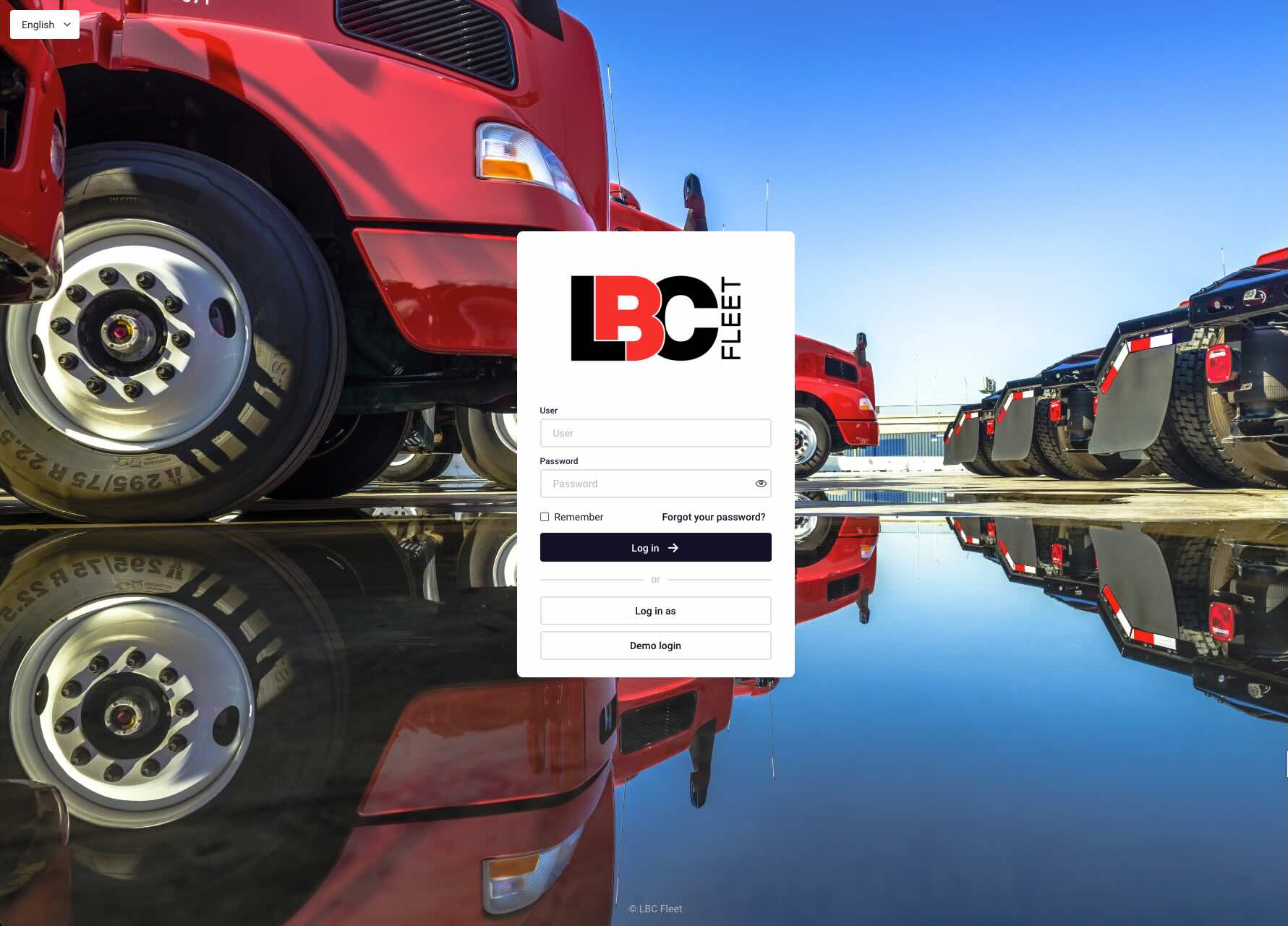
Log In
Already installed and registered? Go straight to the portal at gps.lbcfleet.com.
Go to login →Install + Register
OBD-II for light vehicles, J1939 adapter for heavy trucks. Register the device in the portal.
Install guide →Get Help
Download the user guide, work through troubleshooting, or talk to your account team.
Contact support →GPS Tracking User Guide
The full 18-page reference for the GPS portal. Covers monitoring, tracks, reports, geofences, driver management, notifications, and admin — with screenshots from your platform throughout.
Download the User Guide (PDF) →Compliance-grade tracking — not just dot-on-a-map
Most fleet GPS platforms are built for dispatch: find a truck, route a delivery, prove arrival. LBC Fleet GPS is built for the operator who also has DOT, IFTA, and maintenance compliance to manage. Same live tracking, same geofences, same dispatch use — but the reports, alerts, and integrations are designed around what your auditor, insurance carrier, and maintenance vendor will actually ask for.
- IFTA mileage by state built into the report library — pull IFTA filings without manual data sorting
- Maintenance reports — engine hours, trouble codes, upcoming maintenance, integrated with your fleet maintenance program
- Safety data — unsafe driving, speeding, and connection-loss reports that complement MVR monitoring
- Named-driver accountability via iButton, RFID, or driver logins — every trip ties to a person, not just a vehicle
- Assets, not just trucks — track trailers, forklifts, generators, and other moveable equipment alongside vehicles
- Custom and scheduled reports — auto-email daily, weekly, or monthly outputs to whoever needs them
- White-label LBC branding throughout the portal — your account team supports you directly, not a generic helpdesk
One platform, one account team
The GPS portal sits inside LBC Fleet's broader compliance stack — DQ files, drug & alcohol testing, dash cameras, audit prep. The same account team that handles your DOT compliance also handles your GPS questions, install issues, and report customization.
One phone call, one human, one platform — not a queue at a tracking vendor's call center.
What you can do at gps.lbcfleet.com
The full reference is in the user guide PDF — these are the highlights:
- Dashboard — online/offline units, mileage summary, alerts, fuel use, driver behavior trends
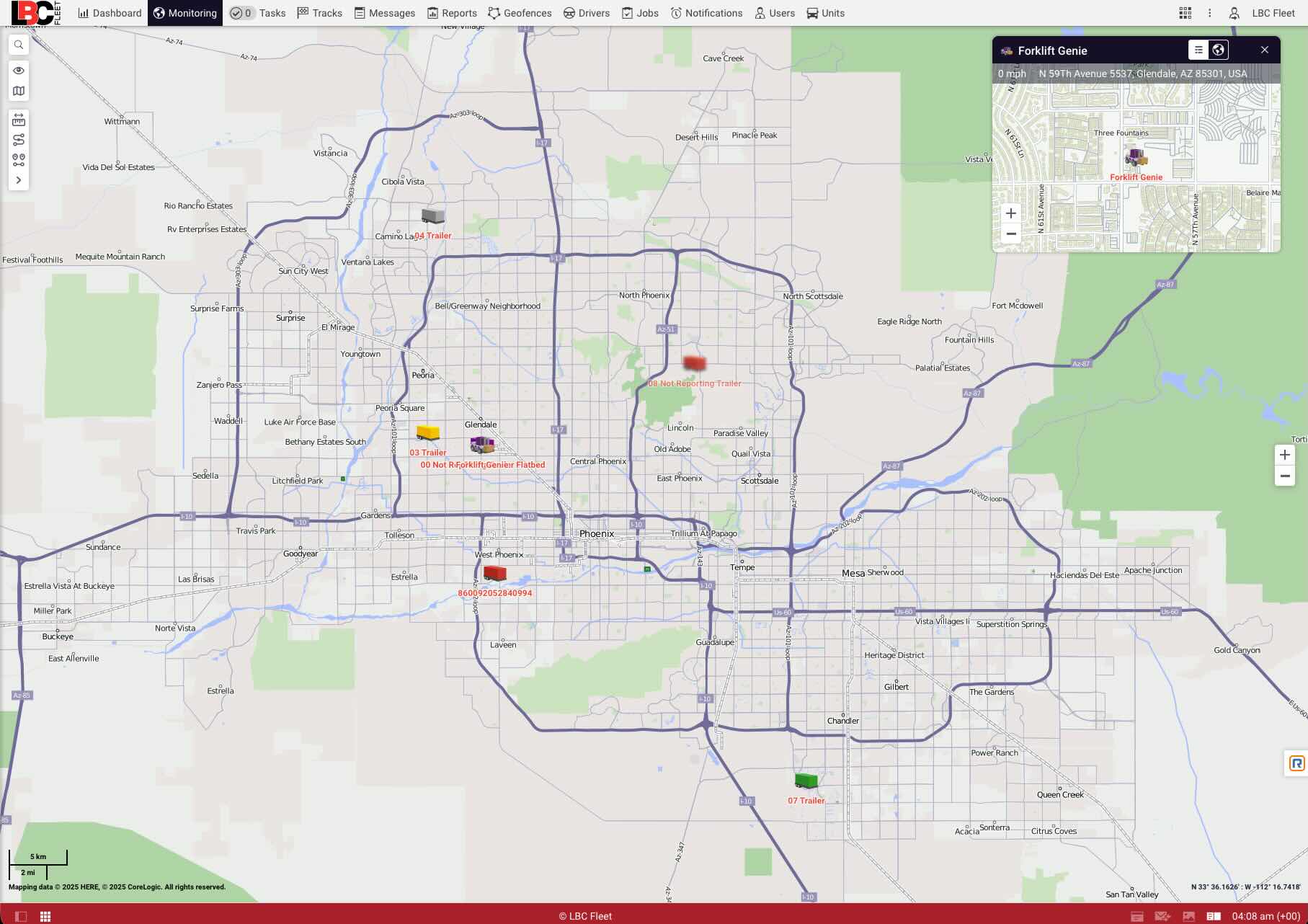
- Live monitoring — unit list + map, fleet-group organization, search by vehicle, group, trailer, or asset
- Tracks & playback — historical route review with stops, trip segments, and timestamps
- 12+ report templates — trips & parkings, idling, engine hours, unsafe driving, speeding, visited geofences, connection loss, upcoming maintenance, fuel usage, trouble codes, IFTA mileage by state, and custom reports
- Scheduled reports — auto-email daily, weekly, monthly, or quarterly
- Geofences — circle, polygon, or line shapes for customer sites, yards, restricted areas, and job sites; entry/exit alerts and dwell-time reports
- Driver management — assign drivers to vehicles manually or automatically (iButton, RFID, mobile workflows)
- Notifications — geofence entry/exit, overspeeding, low fuel, sudden fuel drop, ignition, device offline, after-hours movement
- User administration — named user accounts with role-based permissions
Install your GPS device
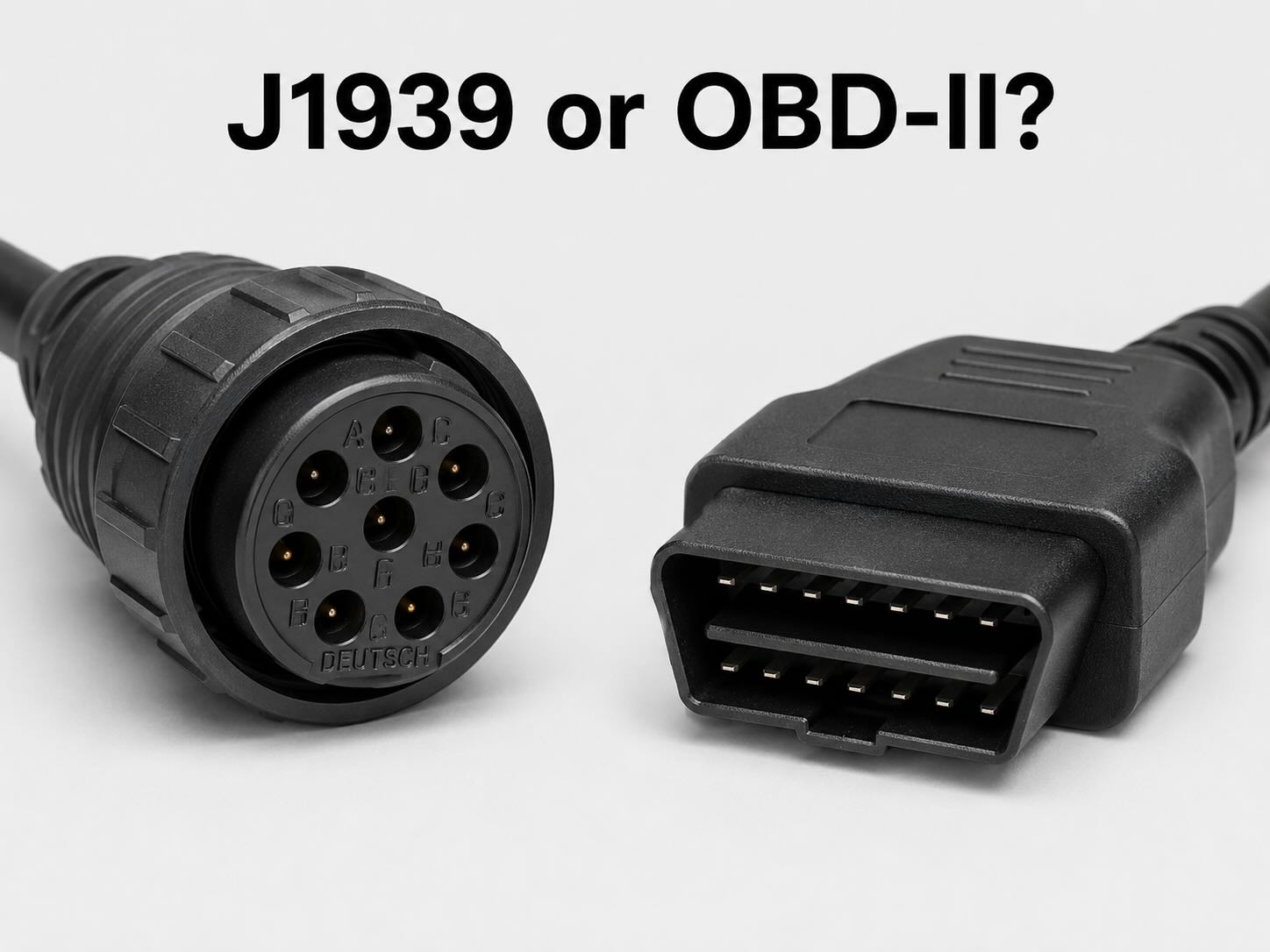
Your device is OBD-II out of the box. For light vehicles and most pickups, it plugs straight into the OBD-II port under the dash — no adapter needed, no tools required.
For heavy trucks, you need a J1939 adapter. OBD-II and J1939 are different diagnostic protocols. OBD-II is the standard for passenger vehicles and light-duty trucks. J1939 is what Class 7 and Class 8 heavy trucks use. Our devices ship OBD-II — for J1939 vehicles, you pair the device with an inexpensive adapter cable.
The technical difference is explained well by JCOM: Understanding the difference between J1939 and OBD-II →
The adapter we recommend on Amazon: AMHTDOL Commercial Vehicle J1939-to-OBD-II adapter → (around $25 — this is not an affiliate link, it's just the unit our customers have used). If you're not sure whether your truck needs the adapter, call us before ordering.
Quick reference
- Light vehicles and pickups (Class 1–6): OBD-II, no adapter needed
- Heavy trucks (Class 7–8): J1939, order the adapter linked above
- Medium-duty trucks (Class 4–6) sometimes straddle the line — call before ordering if you're not sure
- Once the device is in the port and the vehicle is powered on, it starts reporting within a few minutes
Register your device in the portal
Once your device is physically installed, you'll need to register it in the portal and assign it to a vehicle. The walkthrough below covers the full flow — watch it as a video, or click through it as slides at your own pace. For deeper screen-by-screen reference, see the user guide PDF.
ALTERNATIVE FORMATPrefer to click through it as slides instead?
The five-step version
If the walkthrough above doesn't load — or you just want the abbreviated path:
- Log in to gps.lbcfleet.com.
- Navigate to the Units panel in the left sidebar.
- Click "New" to add a unit, then enter the device ID printed on the device sticker.
- Assign the unit to a vehicle by name or VIN, and choose its fleet group.
- Save. The device should report its first ping within a few minutes of the vehicle being powered on.
Quick fixes for the things customers ask most
Most setup hiccups fall into one of three buckets: the device shows offline, the login doesn't work, or the assignment between device and vehicle is mismatched in the portal. The fixes are below — and the user guide PDF covers every screen in detail if you need more depth.
For deeper operational questions — driver assignment, report templates, alert configuration, portal admin — the user guide PDF is the better resource.
The most common ones
- Device offline: ignition + port seating + (for J1939) adapter cable connection
- Can't log in: confirm URL is gps.lbcfleet.com (not lbcfleet.com); use "Forgot your password?" link
- Wrong vehicle showing: check the unit-to-vehicle assignment in the Units panel — physical device may be in vehicle A but assigned to vehicle B
Talk to your account team
Login, install, report customization, or anything that didn't get solved above — three ways to reach us.
Operational questions
How do I tell which device is installed on which vehicle?
In the portal, the Units panel lists every device by its unit ID with the vehicle name or VIN it's assigned to. If a device isn't reporting, check the assignment first — sometimes a device is physically in a vehicle but assigned to a different one in the portal. The unit ID is also printed on a sticker on the device itself, so you can physically pull a device and match its ID to what's in the portal.
Can I pull tracking history from a date in the past?
Yes — the portal retains tracking history per your account's data retention setting. Use the Tracks tab, select the unit, set a date range, and click "Show track." For an insurance claim, accident review, or DOT request, your account team can also export it directly.
How do I add another user with limited permissions?
Open the Users tab (admin permission required), click New, enter the user's name and password, and configure their access — which vehicles, groups, and tabs they can see. Best practice: named logins per person, not shared passwords. The user guide PDF covers user administration in Section 12.
Can the platform email me a weekly mileage report automatically?
Yes — scheduled reports. Open the Reports tab, build the report you want, then schedule it to auto-email daily, weekly, monthly, or quarterly to whoever needs it. Common patterns: weekly mileage by vehicle, monthly IFTA mileage by state, daily exception reports (overspeeding, idling, connection loss).
Does the platform track trailers and equipment, not just vehicles?
Yes — units can be vehicles, trailers, generators, forklifts, or other moveable assets. Each gets its own device and reports independently. Useful for fleets where the trailer or piece of equipment moves between trucks and matters operationally.
What if the Scribe walkthrough doesn't cover my situation?
The Scribe walkthrough covers the standard device registration flow. For non-standard setups — multiple fleet groups, custom user permissions, ELD pairing, dash camera integration — call your account team. These are configured account-by-account.
Is there a full user manual?
Yes — the GPS User Guide PDF is 18 pages and covers every screen of the portal with screenshots: dashboard, monitoring, unit list, map workspace, tracks, reports, geofences, driver management, notifications, and admin.
Not a customer yet? See how LBC Fleet GPS tracking works →