
LBC Fleet software guide · Applicants
How to Add a New Applicant in LBC Fleet
Create a recruiting record with the applicant’s contact information, current stage, department, and intended company context—then confirm the saved row before starting a separate hire-packet or screening workflow.
Prepare before entering the record
Confirm the candidate
Have the intended first name, last name, phone number, and valid email address ready. Confirm the email belongs to the intended applicant before entering it.
Choose workflow context
Know the current recruiting stage, department, and intended company context. These are workflow fields, not proof of employment, driver qualification, or activation.
Use approved records only
Do not place credentials, private links, unnecessary sensitive data, or an unapproved document in the record. Follow the company’s applicant-data procedure and retention rules.
Add the applicant
Open Applicant Tracking
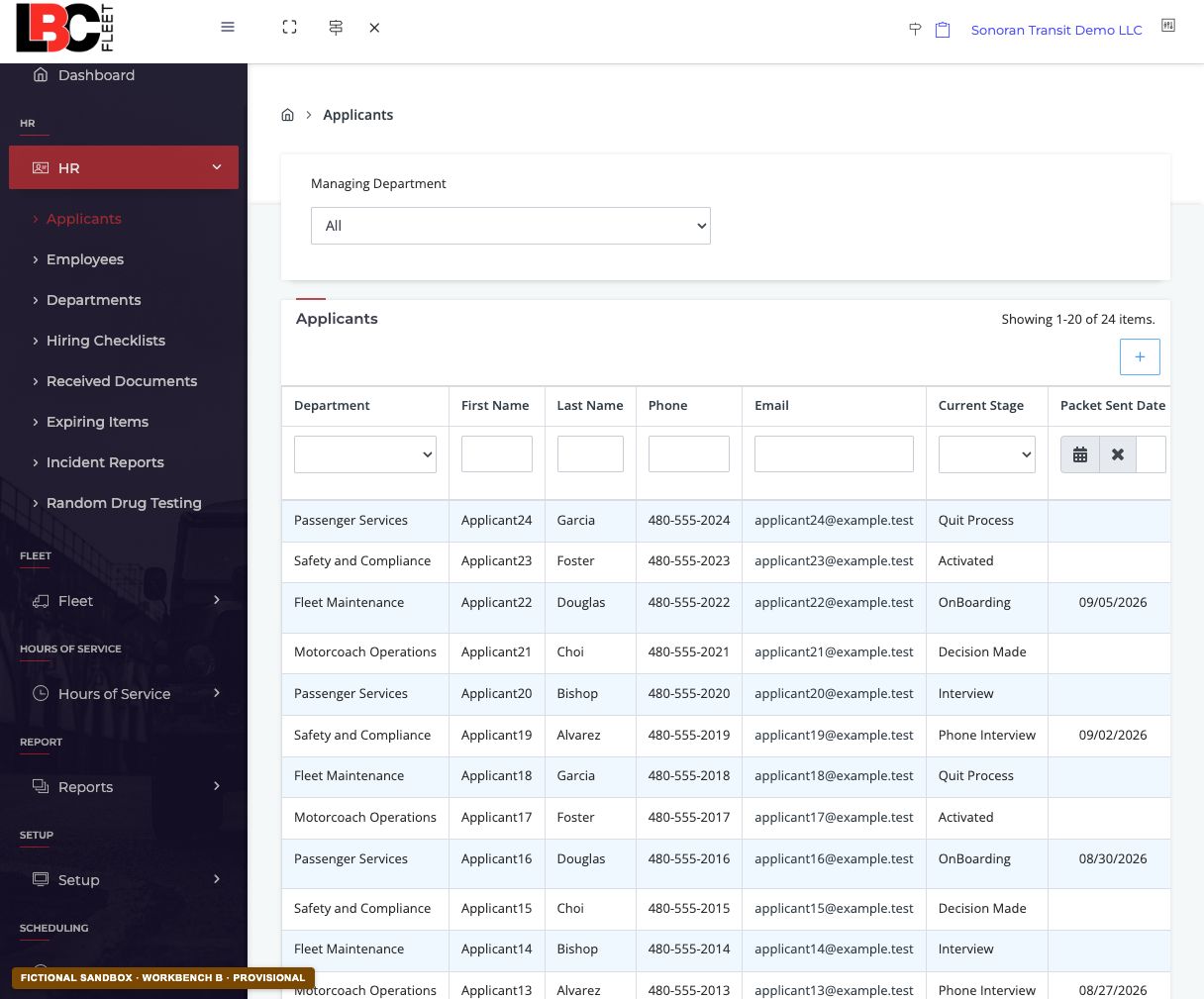
Open the Applicants list in Applicant Tracking. Review the existing rows and filters so you start from the intended workflow.
 Open full-size screenshot
 Start a new applicant
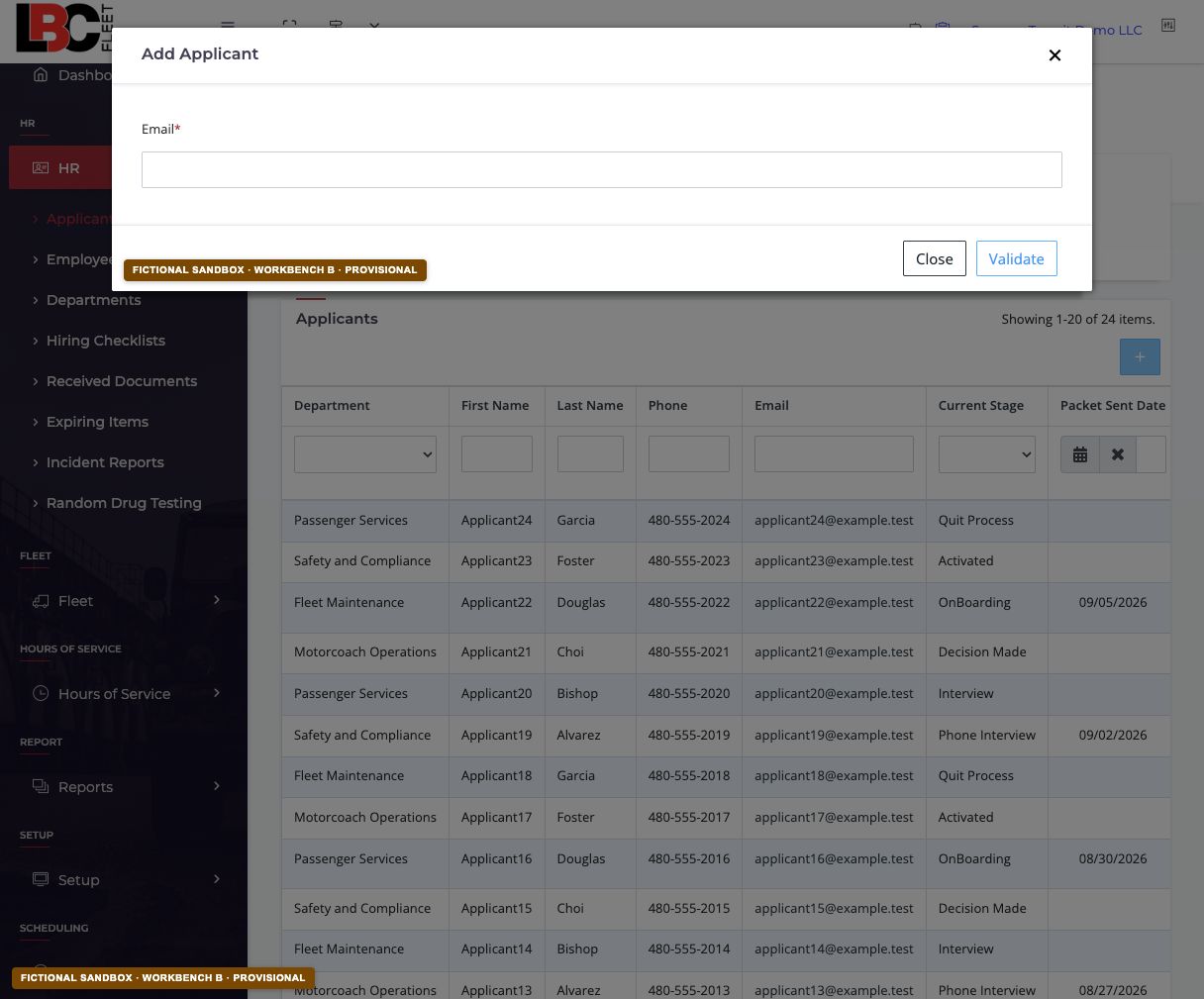
Select the current Add Applicant control. In the fictional sandbox, this opens an email-validation window before the full record form.
 Open full-size screenshot
 Enter and validate the email
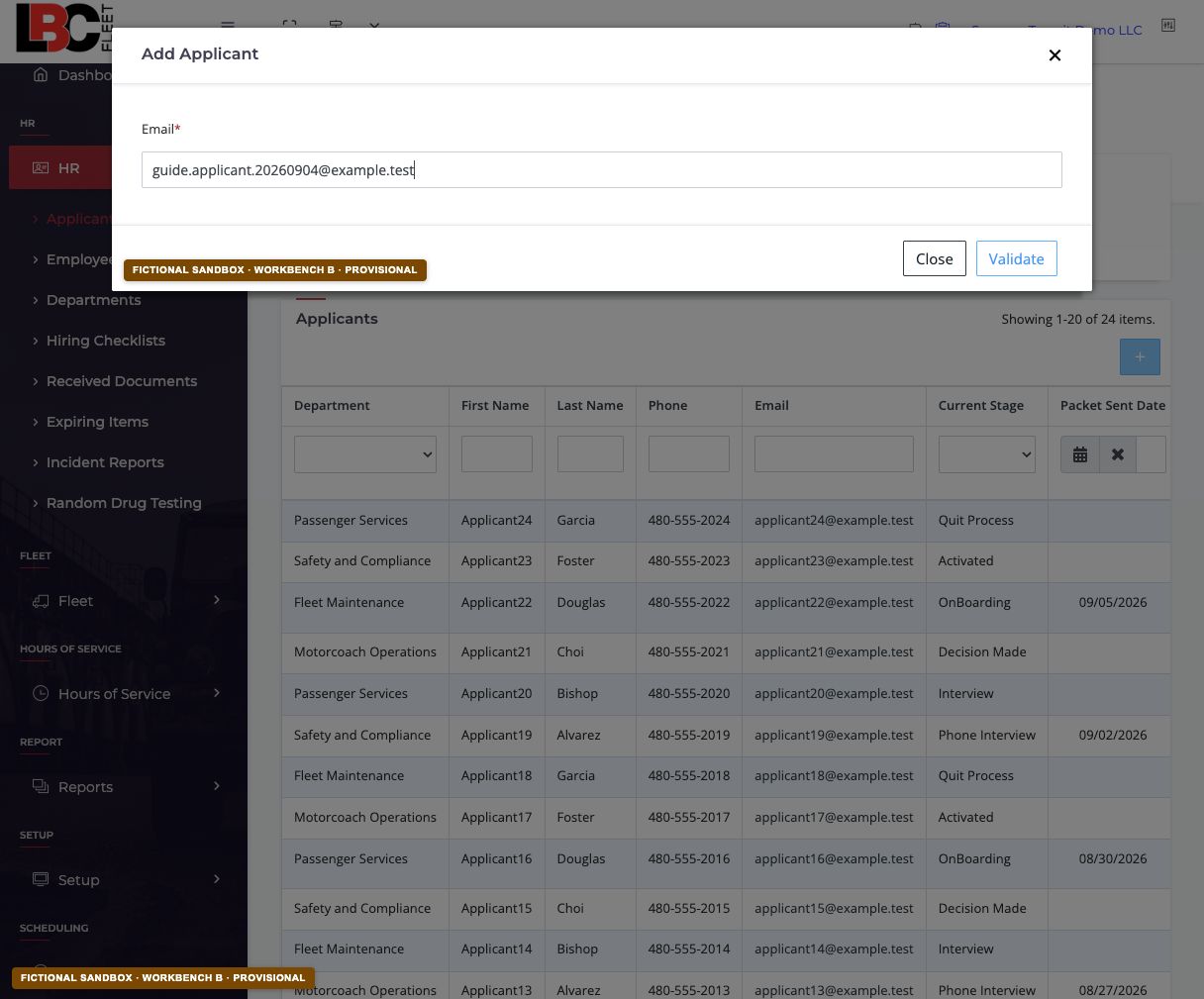
Enter the applicant’s email carefully, then use the current validation control. Stop if the result points to an existing or unexpected record; do not work around a duplicate or ownership warning.
 Open full-size screenshot
 example.test address demonstrates the pre-validation state without exposing a real address.Complete the applicant record
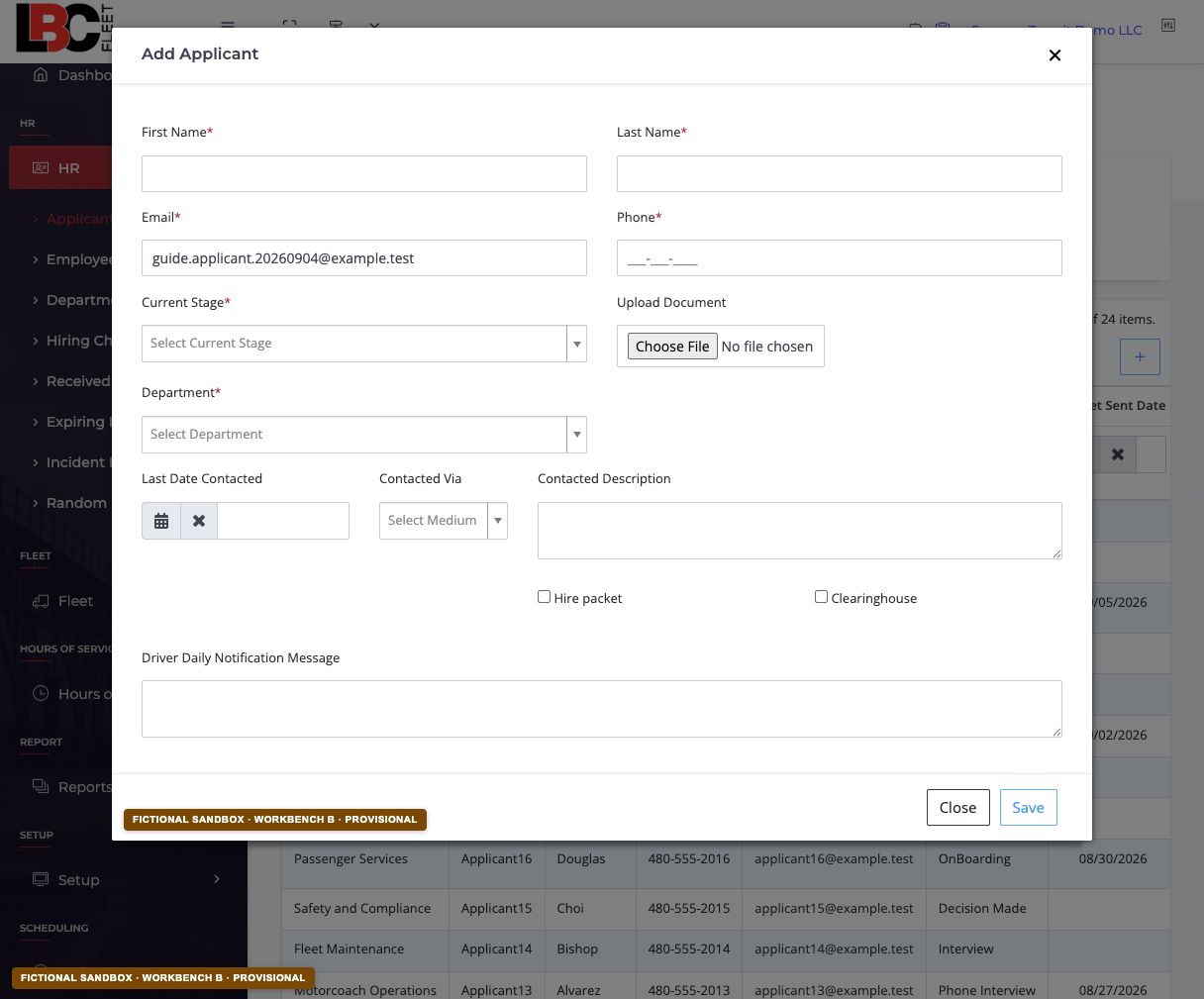
Enter the required first name, last name, phone number, current stage, and department. Review optional contact and document fields only if they are needed and approved for this record.
 Open full-size screenshot
 Assign stage, department, and company context
Select the recruiting stage and department that match the current workflow. The selected company associates the applicant with that company’s workflow; confirm the intended company before continuing.
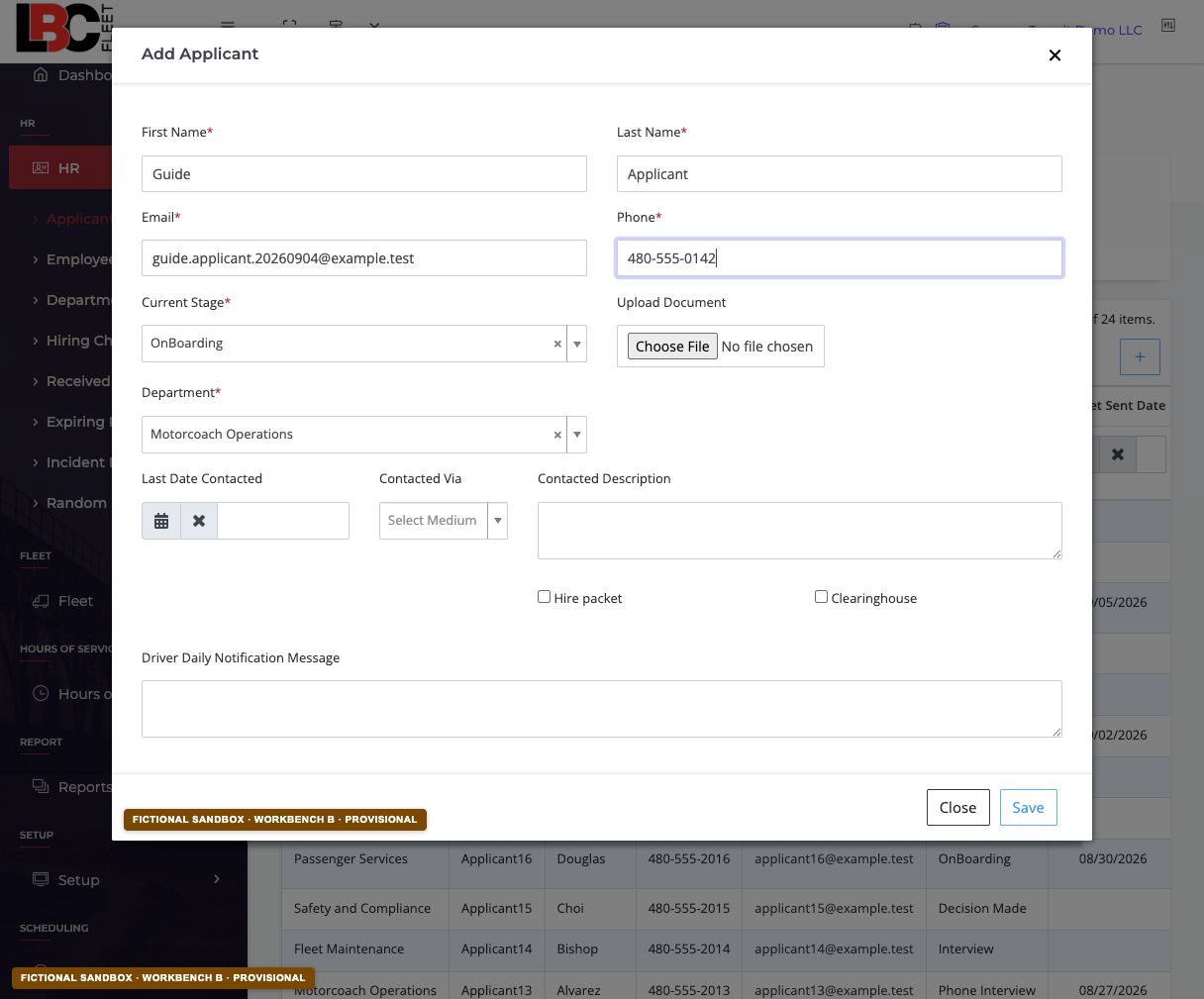 Open full-size screenshot
 example.test address, a 555 number, the OnBoarding stage, and Motorcoach Operations.Review, save, and read back
Review each field against the intended applicant and company context. If the current authorized interface provides a save action, use it once, then return to Applicant Tracking and confirm the saved row. Stop on missing, duplicated, mismatched, or unexpected data.
Post-save verification
- The row matches the intended first name, last name, phone, email, stage, department, and company context.
- No duplicate or unrelated applicant record was created or changed.
- Any optional document belongs to this applicant, is authorized, and contains no unnecessary sensitive data.
- The current application response, saved record identifier, and rollback predecessor are recorded.
- Hire packets, screening orders, driver activation, and DQ-file work remain separate workflows with their own approval and verification.
Limits and stop conditions
This guide does not establish access-control policy, tenant isolation, production deployment, applicant consent, delivery of a hire packet, screening completion, employment status, driver qualification, or regulatory compliance. It does not authorize a document upload or a live applicant write.
Stop if the current form, validation response, company context, save behavior, or readback differs from the approved procedure. Resolve the mismatch before continuing.