
New Features for Scheduling
Have several trips to enter? Start with the CSV template, check the preview for rows that need attention, then review the imported trips before you schedule them.
Open Scheduling in LimoLogs →Sign in with your LimoLogs account. You will see the Scheduling tools available to your company.
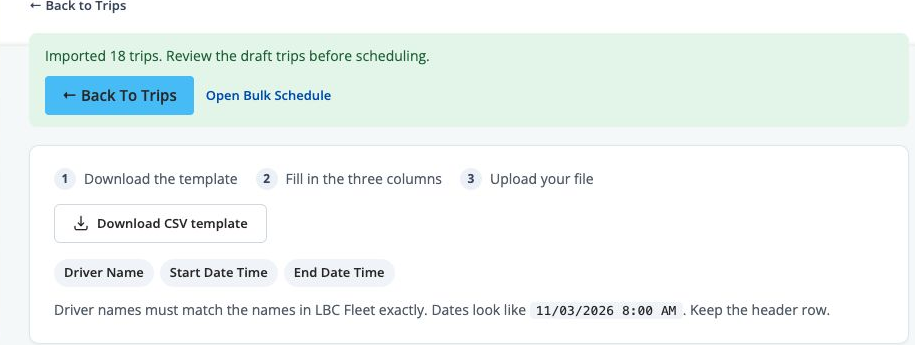
LimoLogs staging example. Counts, company settings, and some on-screen wording may differ from current production. Open larger example
Start with the trip template
In Scheduling → Trips, select Import File, then Download CSV template. Enter the driver name, start date and time, and end date and time under the template’s three headers. Use each active driver’s full name exactly as it appears in LBC Fleet.
Check the preview
Upload the CSV and look at the validation and attention counts. The preview places rows that pass validation first, ordered by Driver call time. If a driver name is not found or the end time comes before the start, correct the CSV and upload it again.
Import, then review
When the preview looks right, select Import trips. Check the result message for the imported count. Choose Back to Trips to see the trips, or Open Bulk Schedule to keep working in Scheduling.
The preview calculates Driver call time from your company’s reporting-time setting. Imported trips save the end time using your company’s clock-out setting. Review the trip times before scheduling.
Ready to try it?
Open your own Scheduling area, download the template, and review the import preview with your company’s trip data.
Go to Scheduling →If you do not see Scheduling after signing in, ask your company administrator about access.