
Configure the company. Verify what changed.
Update company identity, contacts, notifications, and feature controls without confusing company settings with app-wide or integration settings.
1 Open Company Info
Open Setup → Company Info, then select the intended company. Confirm the company name before choosing Update.
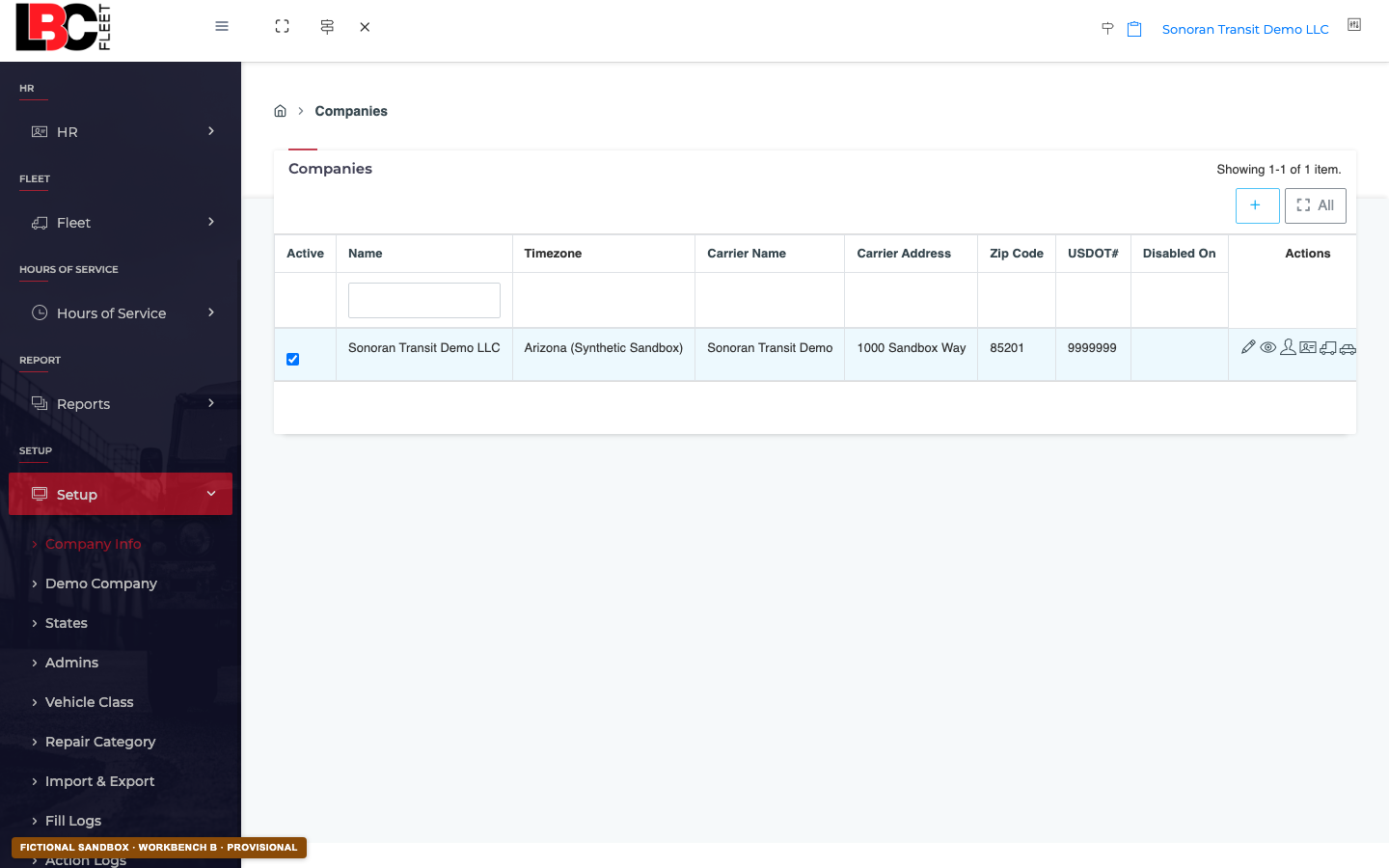 Open full-size screenshot ↗
2 Review identity and contacts
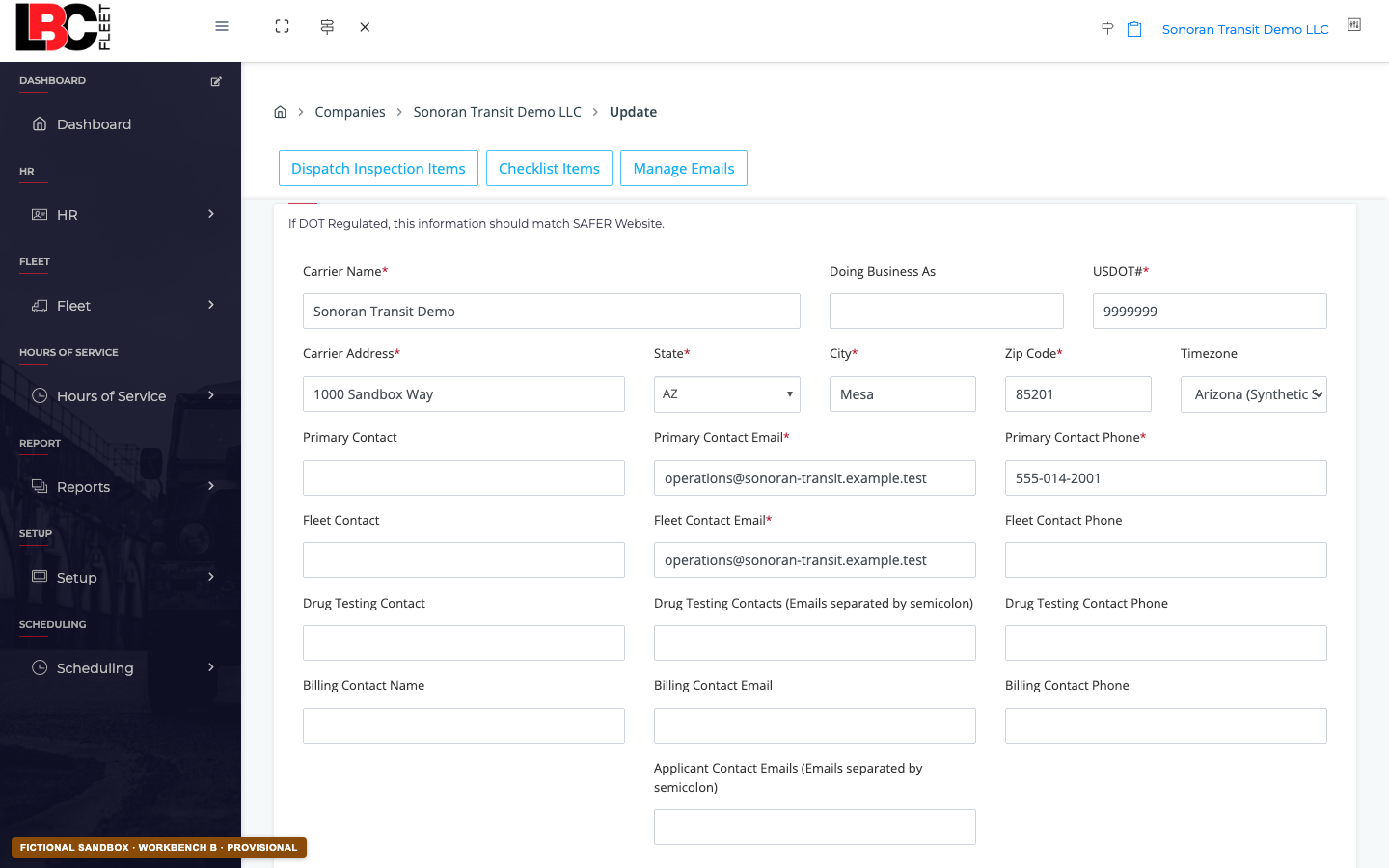
Check carrier name, USDOT number, address, timezone, and primary and fleet contact details. For a DOT-regulated company, reconcile carrier identity against the organization’s authoritative record before saving.
 Open full-size screenshot ↗
3 Change only the intended features
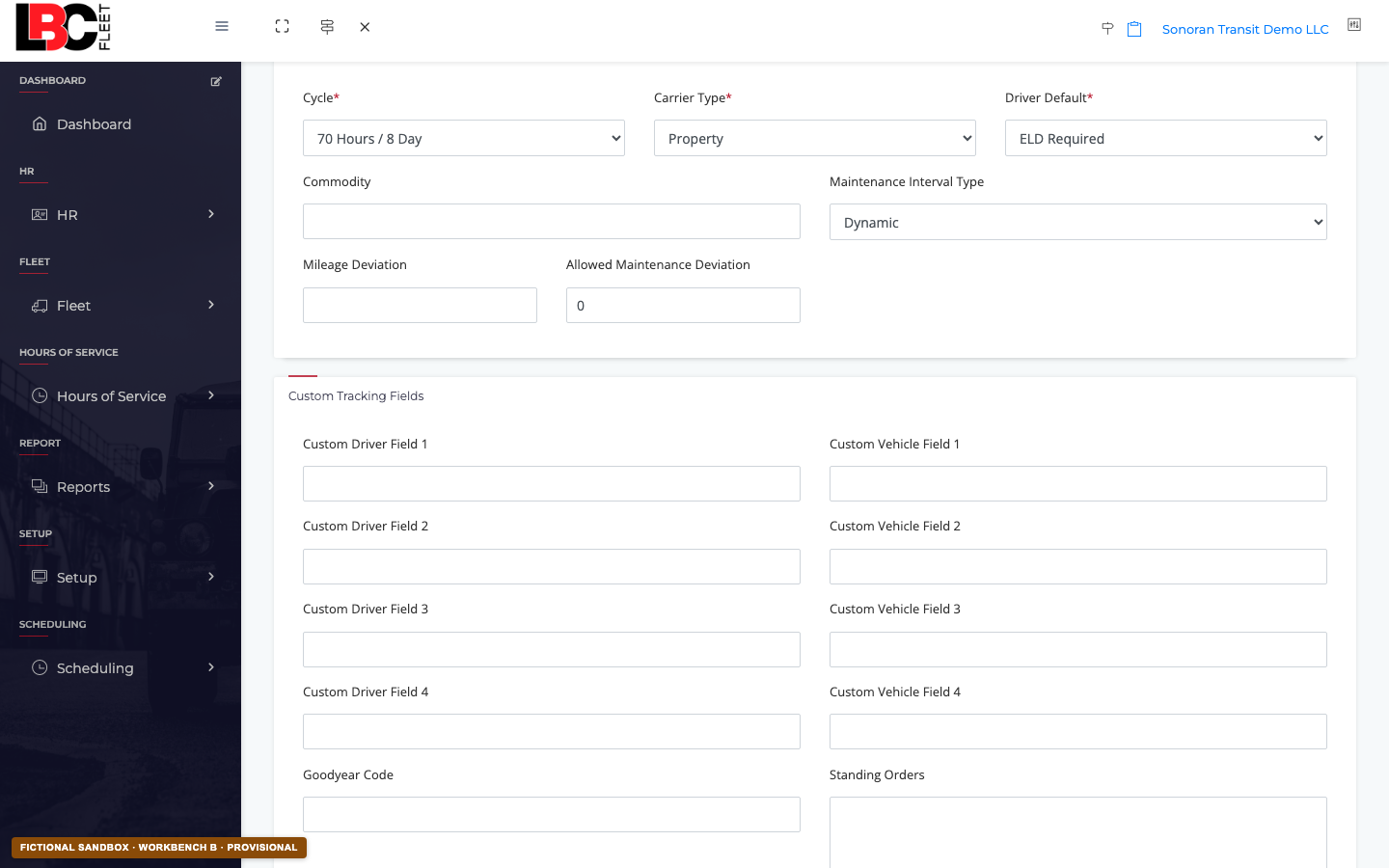
Review carrier type, scheduling, HR, fleet management, HOS, recruiting, incident review, maintenance, and custom-field controls. Treat each toggle as behavior—not decoration. If its operational effect is unclear, leave it unchanged and ask the account owner.
 Open full-size screenshot ↗
4 Keep notification recipients separate
Use Manage Emails for report and alert recipients. Confirm the recipient, notification type, and business purpose. Do not use a shared or external address unless the company authorizes it.
5 Save, reopen, and verify
Save once, reopen the same company, and verify the exact fields you intended to change. Confirm the expected menu or workflow behavior, then record who changed it and when. If the saved value or resulting behavior differs, restore the prior value and investigate.