Software should not make you feel like you need a decoder ring.
When someone opens a fleet-management screen, they usually have a real job to finish: add a driver, check a report, register a GPS device, review a work order, or figure out why something does not look right. They do not need a wall of technical instructions written for the person who built the software. They need to know four things:
- Where am I?
- What am I looking for?
- What happens if I click this?
- When should I stop and ask for help?
That is why we are building the LBC Fleet Software Guide library: visual, step-by-step walkthroughs that help real people use LBC Fleet with more confidence.
Small pictures. Clear pointers. One step at a time.
Our goal is not to fill an entire page with one giant screenshot and expect you to hunt for the right button.
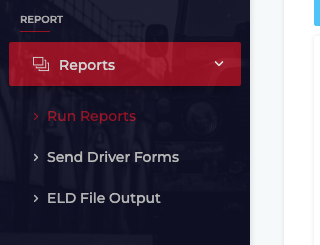
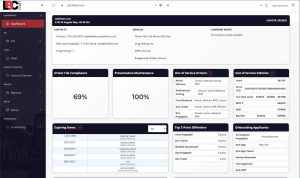
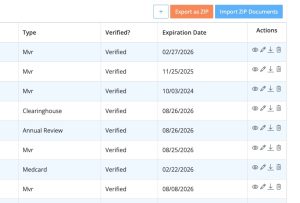
The guides focus on the task in front of you. Where a current screenshot is available, a smaller, readable image can show the part of the screen that matters. We are adding more verified product pictures as we build out the library. The words underneath explain the step in plain English.
When the full screen adds useful context, the guide can link to the complete image. That gives visual learners a focused next step without taking away the bigger picture.
The guides explain the difference between looking and changing
Some screens are safe to review. Other buttons can create a record, send an email, register a device, transfer data, remove something, or change a driver’s status.
The guides call out that difference.
You should be able to tell whether a step simply opens a page, starts a check, saves information, or triggers something outside LBC Fleet. A visible button is not always permission to use it, and a success message is not always proof that the whole job finished correctly.
That is not meant to make the software feel scary. It is meant to help you move with confidence instead of guessing.
One growing library for the work fleets actually do
The public library already brings 23 step-by-step guides together by task, so you can find the job you need instead of memorizing the menu.
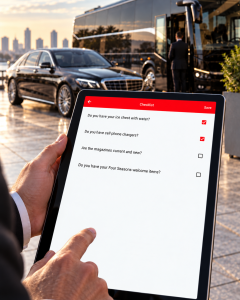
We are expanding the library with clearer report explanations, more Driver App and inspection help, and better visual guidance for body-damage photos and video. One example is a client-customizable vehicle checklist: a passenger carrier can ask about an ice chest with water, phone chargers, current magazines, and property-specific welcome items. The Driver App also distinguishes non-safety issues from safety defects, so a non-safety item does not automatically put a vehicle out of service. We will plainly label what is available now and what is still being developed.
Need help with a guide?
Email support@lbcfleet.com. Tell us which guide you are using, what step you reached, and what you see on your screen.
Want to see whether LBC Fleet fits your operation? Book a conversation with our team. You can also explore our DOT compliance software.