Scheduling is free for LBC Fleet full-service driver file clients. Sign up for full-service driver file maintenance and scheduling comes with it. For everyone else, it is $3 per driver per month, and we’re waiving the $200 setup fee.
Here’s what we’ve added to make it easier to use.
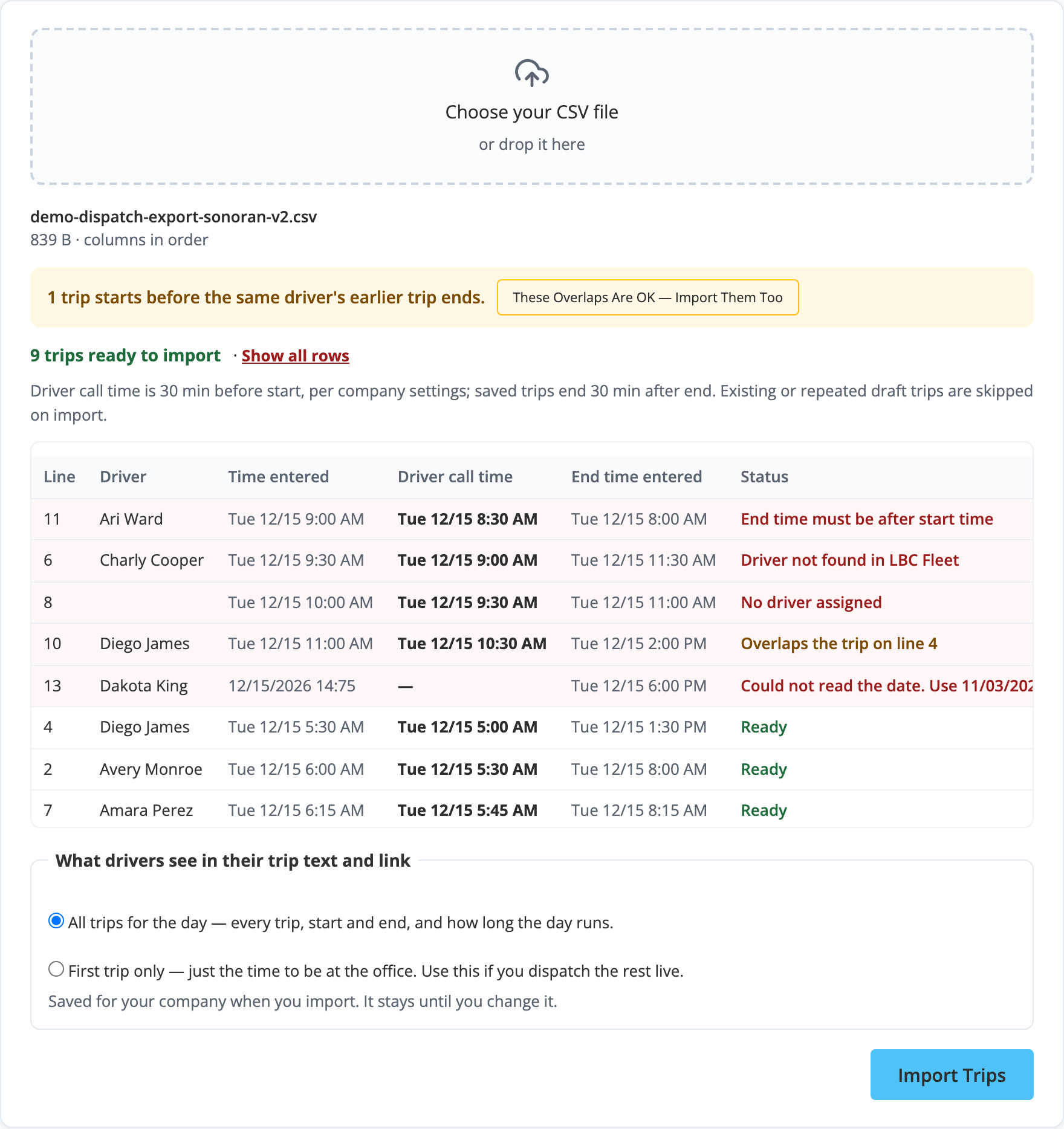
Your trips are already in your dispatch software. You should not have to build that same list again just to get it to your drivers. Export the trips as a CSV, upload the file to LBC Fleet, and review what is ready before you import.
The new upload reads common dispatch export columns without making you open and rearrange the file. If your dispatch system exports something different, talk to us. We can work with you on the import format.
What happens when I import dispatch trips?
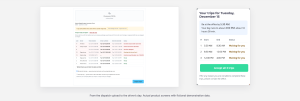
LBC Fleet checks the trips before they go onto the schedule. Ready trips show green. Held trips show a reason, such as a missing driver, a name that does not match, an unreadable date, or an end time before the start time.
You can load the good trips and fix the held trips on the page. Pick the right driver or correct the time, then add those trips. A problem in one row does not mean starting the whole file over.
If a driver’s trips overlap, the review screen flags it. When the overlap is intended, you can confirm it with “These overlaps are OK.” You still get to make the scheduling decision.
One text for the day’s confirmation
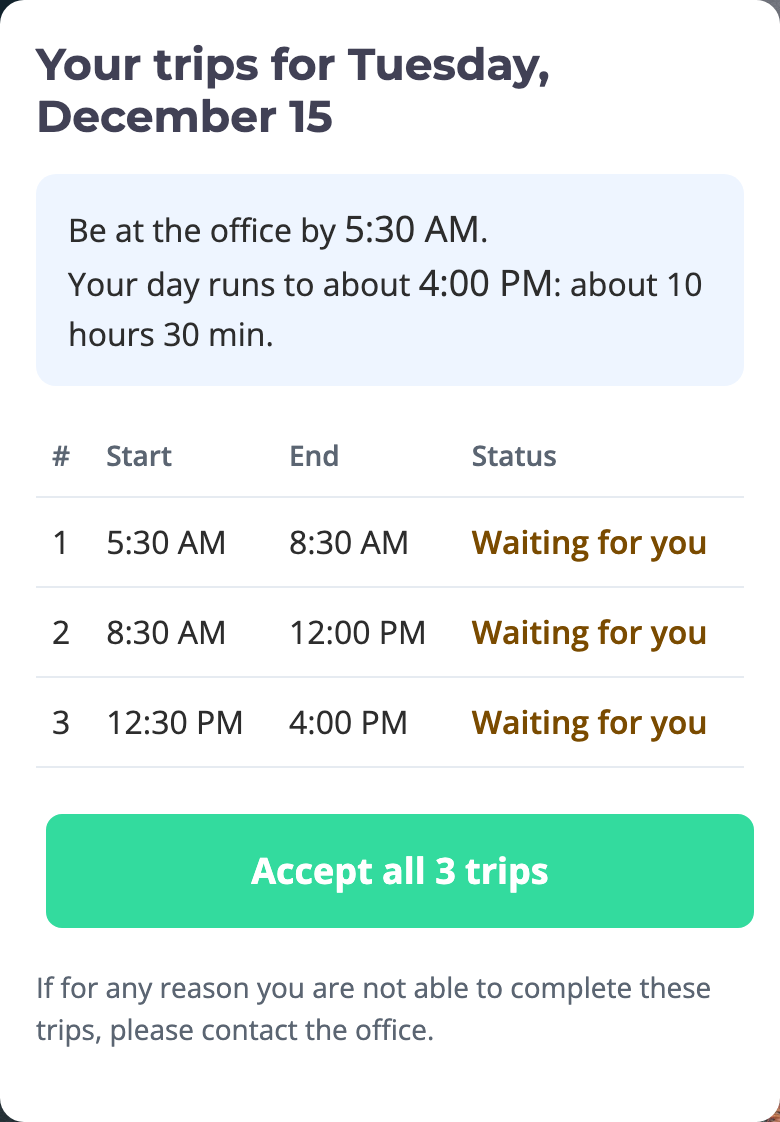
Drivers now get one schedule-confirmation text for the day. The link can show all of that day’s trips, their start and end times, and how long the day runs. One “Accept all” button confirms the day.
That gives a driver something useful to look at before calling dispatch: when to report, what’s scheduled, and when the day is expected to end.
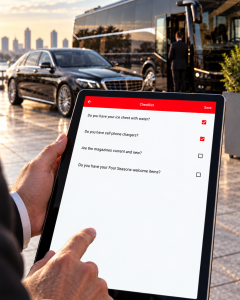
The daily confirmation does not replace automated check-ins. Those reminders still go out before trips.
Show the whole day, or just the first trip
Some companies plan the whole day in advance. Others dispatch the next trip as the day develops. You can use either approach.
Choose “All trips for the day” when you want the driver to see the full schedule. Choose “First trip only” when the confirmation should show the first reporting time and you will dispatch the rest live. LBC Fleet remembers the company setting until you change it.
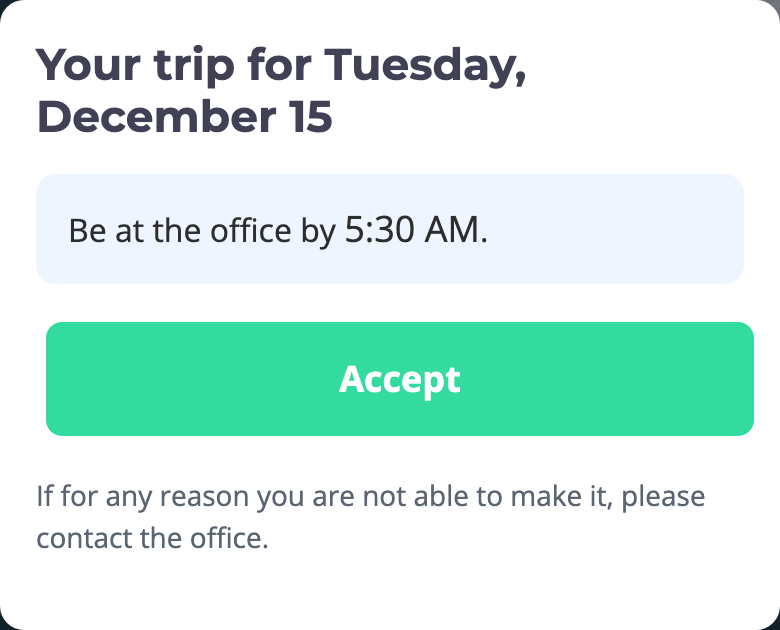
Office time is a separate company setting. Set how many minutes before the trip a driver should report under Setup → Company Info → Scheduling Settings → Reporting Time. A blank setting means zero minutes. Set it before uploading; existing trips keep the time they were given.
Already a full-service driver file client? Turn scheduling on.
Scheduling is included free with full-service driver file maintenance, whether you already use that service or sign up now. Our driver qualification file management service handles ongoing file work, including document collection, follow-up, date tracking, and organization.
If you don’t use full-service driver file maintenance, add scheduling for $3 per driver per month. The $200 setup fee is waived.
Want to see the screens first? Read New Features for Scheduling and the step-by-step trip upload guide.
Get the rest of your fleet work connected
Scheduling is one part of running the day. LBC also offers fleet maintenance management and DOT compliance software. If your next priority is hiring, records, testing, or audit preparation, browse our services and tell us what you need help with.
Ready to use scheduling? Call 480-779-4342 or email info@lbcfleet.com. Tell us which dispatch software you use, and we’ll help you get started.
Discuss scheduling with LBC · Explore full-service driver file maintenance